About You

IP Address: 38.107.191.96
Our service replaces your IP Address with one of our secure and anonymous IPs. It will make you appear to be from the USA, UK, Canada, Germany etc.
The most trusted industry leader. Servicing businesses, professionals and home users.
Become Anonymous, Stop Government/ISP Monitoring and Tracking, Unblock VOIP, Skype, and all other content/websites, Secure Your Connection


OpenVPN Client Mac OS X Setup

For OS X, you the OpenVPN client is called "Tunnelblick".

*Credit to the Tunnelblick Wiki

Click here to download it for free: http://tunnelblick.googlecode.com/files/Tunnelblick_3.0.dmg

Installing Tunnelblick

Note: there is no need to install OpenVPN separately - the Tunnelblick application contains both the Tunnelblick GUI and OpenVPN.

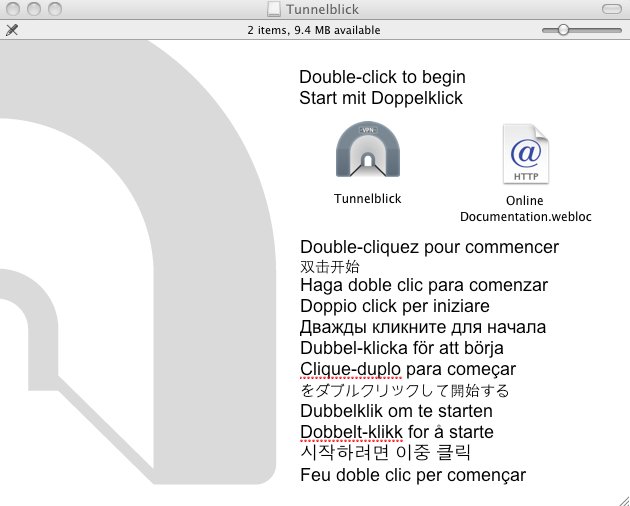
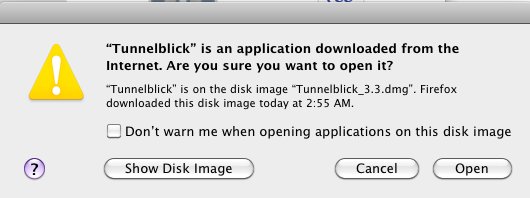
First, download the latest disk image from the featured downloads section on the Tunnelblick project page. Double-click the downloaded .dmg file. An icon for a "Tunnelblick” disk will appear on the Desktop, and a window similar to the following will appear:

Double-click the Tunnelblick icon and a new window will appear, similar to the following:

If you are reinstalling, upgrading, or downgrading Tunnelblick, the window will show the version number of the current copy and of the new copy. The current copy of Tunnelblick will be put in the Trash before it is replaced.

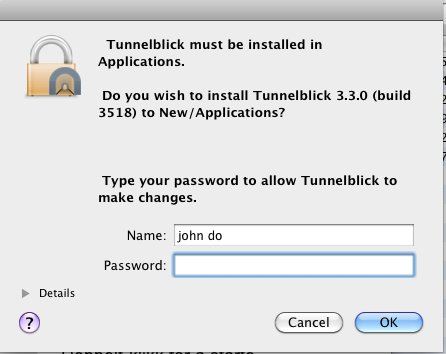
Click the "Install" button to copy Tunnelblick to your hard drive at the indicated location.

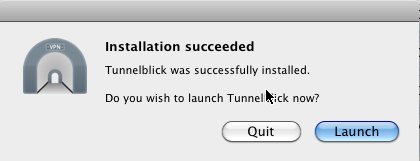
Once that is done (it may take a couple of seconds), a new window will appear, similar to the following:

If you want to launch Tunnelblick now, click the "Launch" button.

If Tunnelblick is currently running, a window similar to the following will appear:

Click the "Close VPN Connections and Stop Tunnelblick" to continue. After all connections are closed and Tunnelblick has quit, the new version of Tunnelblick will be launched. Continue with the following sections.

The First Time Tunnelblick is Run on a Computer

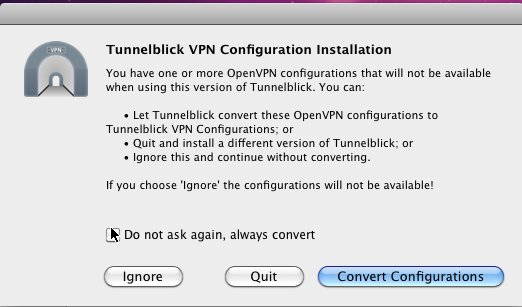
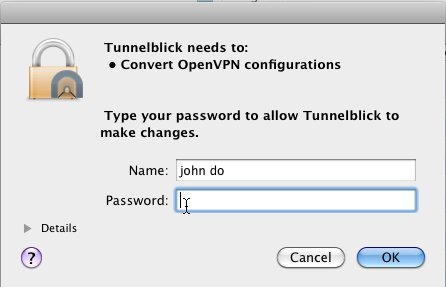
The first time a new installation of Tunnelblick is run on a computer and after a reinstall, upgrade, or downgrade, it will display the following screen:

Please enter the name and password of a computer administrator. Tunnelblick's imbedded OpenVPN needs root privileges because it needs to modify network settings by configuring new network devices, changing routes, and adding and removing nameservers. Because we don't want you to enter your administrator account name and password every time you start a VPN connection, Tunnelblick comes with a setuid root binary that allows it to start a VPN connection with super user rights. Tunnelblick uses your administrator account name and password so it can create this setuid root binary.

Continue on to the next section.

The First Time Tunnelblick is Run by Each User

If this is the first time you have run Tunnelblick as a particular user, or the first time after some Tunnelblick upgrades, the following window will appear:

Specify whether or not you wish to have Tunnelblick check for updates each time it is launched. Each time an update is available, you will be given a choice of whether to install the update or not.

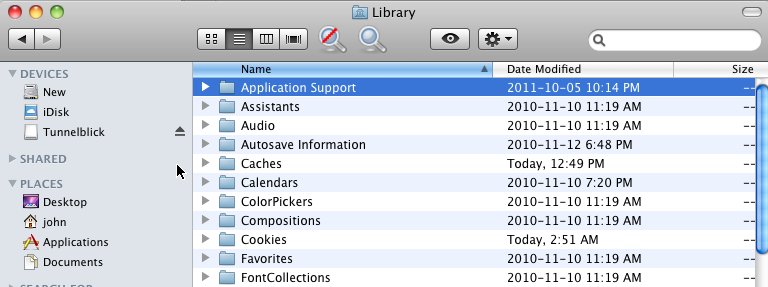
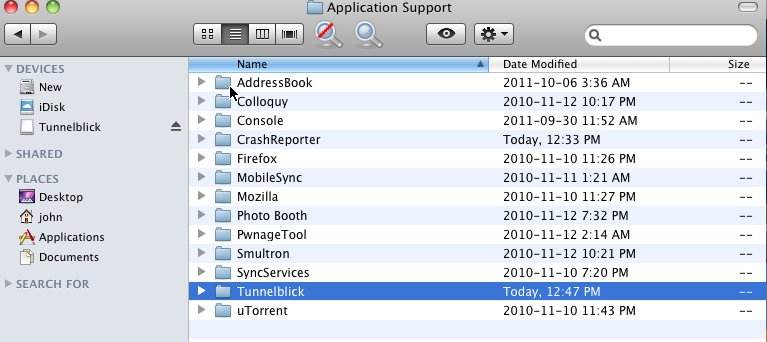
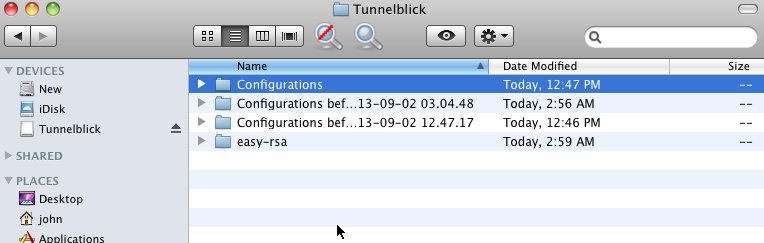
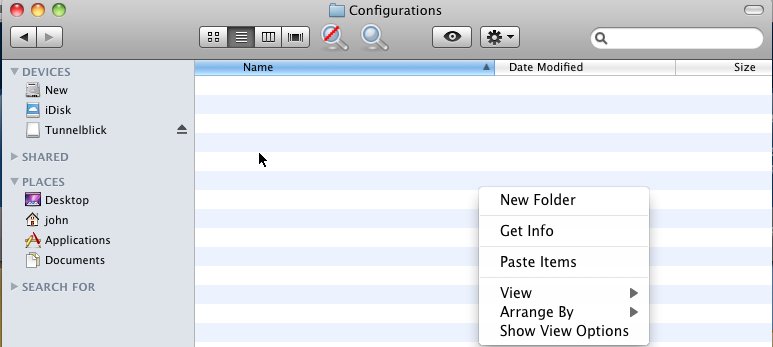
When there are no configuration files in ~/Library/Application Support/Tunnelblick/Configurations (which is usually the case the first time Tunnelblick is run by each user when using a non-deployed version of Tunnelblick), the following window will appear:

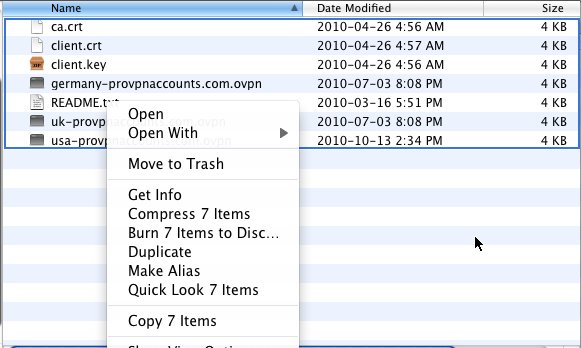
Click "Open configuration folder" and extract the "config.zip" provided to you.

Normal Tunnelblick Operation

Once Tunnelblick has been launched, you control it from the icon in the Status Bar at the top of your screen. The Tunnelblick icon is usually placed between the time and the Spotlight icon. When no VPN connection is active, the icon is dark, indicating a closed tunnel:

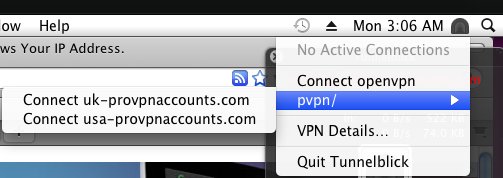
If you click on the icon, you'll see a drop down menu similar to the following:

There will be a "Connect” menu item for each .ovpn or .conf file in ~/Library/Application Support/Tunnelblick/Configurations. Click on one to establish the corresponding pre-configured VPN connection. To illustrate the connection being established, three dots will appear in the menu item, and the Tunnelblick icon will darken and lighten repeatedly. If the connection is successfully opened, the icon will change to show an open tunnel:

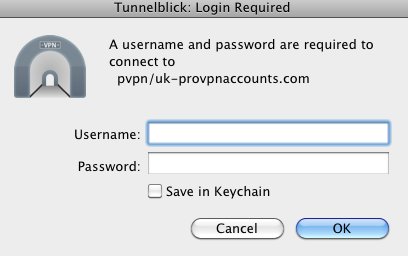
Depending on your setup, you may be asked for a passphrase or username/password combination. You can save your passphrase or password in Apple's Keychain by checking the appropriate checkbox.

The connection will be active as long as you do not end it or log out. Putting your computer to sleep will close the connection but upon waking up from sleep Tunnelblick will attempt to reestablish the connection. If Tunnelblick loses contact with the server (because of a lack of wireless signal, for example), it will periodically try to re-establish the connection.

If a connection error occurs, or in the unlikely event of an interface crash, Tunnelblick will terminate the VPN tunnel and record the error in the Console Log.

Use "Disconnect” from the drop-down menu to close the VPN connection. Use "Quit” to close all open connections and quit the program and prevent Tunnelblick from starting itself at your next login at your computer.

If Tunnelblick is running when you logout (or your computer crashes, or is shut down or restarted), then Tunnelblick will be started automatically upon login. To stop Tunnelblick from being started automatically upon login, be sure to quit Tunnelblick before logging out, either by using the "Quit” command, or by using Command-Q (Apple-Q) when the "OpenVPN Log” or "About…” window is active. (Don't confuse this automatic launch of Tunnelblick upon login with the "Automatically connect on launch” option, which causes a connection to be established when Tunnelblick is started.)

The "Options…" Submenu

When the Tunnelblick menu is displayed, if you hover over "Options", the Options Submenu appears:

Click on an item in the Options Submenu to change a preference, check for updates, or display the "About" window. For more details on preferences, see the Preferences wiki.

Some deployed versions of Tunnelblick do not display the Options Submenu (it is controlled by a preference), in which case the "Options" menu item is replaced by "About Tunnelblick..."

http://code.google.com/p/tunnelblick/wiki/UsingTunnelblick#Installing_Tunnelblick

Do You Have Questions?

Our professional support staff will be glad to answer your questions/concerns.

Click Here To Contact Us (fast response).

Examples of VPN Benefits